
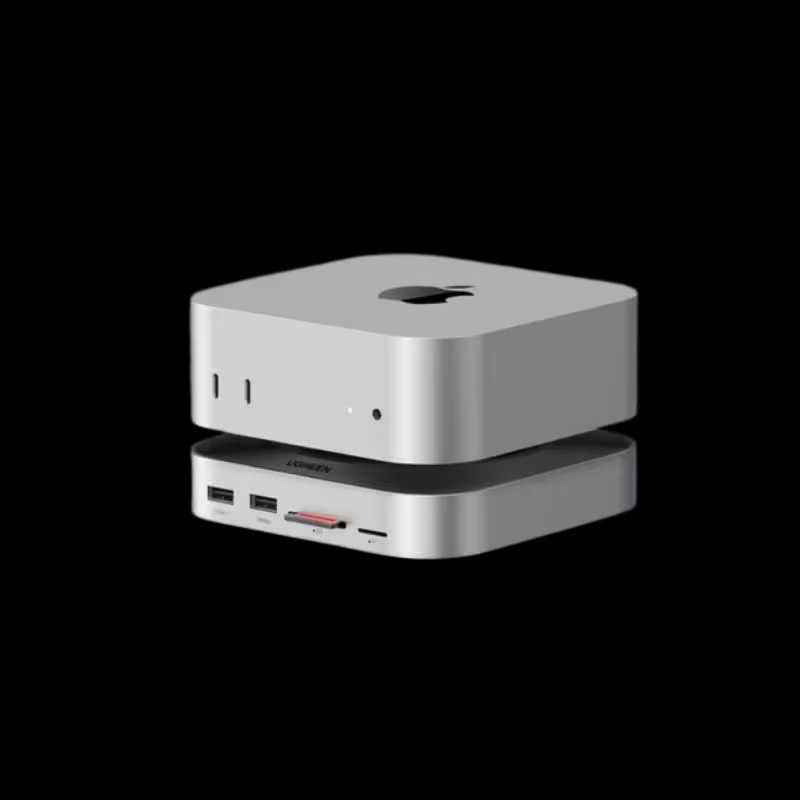
Apple Harbor App Guide: Turn Your Mac Into a Private AI Server
The Apple Harbor app is a new Mac app from Claris, an Apple company. It turns Apple silicon Macs into a private AI inference server that runs open-weight models on your own hardware. As of November 11, 2026, it is in private preview, with no public release date or price.
You can build a similar setup today with free tools like Ollama and LM Studio. This Claris Harbor guide explains what we know about the Apple Harbor app, how Thunderbolt 5 clustering works, and how to start now. It also covers the Macs worth buying if you want a private AI inference server at home or at work.
What Is the Apple Harbor App?
The Apple Harbor app is a local AI server tool. You install it on a Mac, load an open-weight model, and your Mac answers AI requests without sending data to the cloud. Claris describes it as a way to run models with zero cloud fees and no per-token billing.
Harbor works on one Apple silicon Mac. It also supports linking several Macs over Thunderbolt 5 to pool unified memory for larger models. The app lets you browse, download, and load models from inside the app.
Claris Harbor at a Glance
- Maker: Claris, an Apple subsidiary
- Status: private preview, early access
- Release date: not announced
- Price: not announced
- Runs: open-weight models on Apple silicon
- Privacy: prompts and data stay on your Macs
- Clustering: multiple Macs over Thunderbolt 5
Why Is Harbor Under Claris?
Many readers expected a feature inside Apple Intelligence. Instead, Harbor carries the Claris name. Claris is an Apple subsidiary best known for the FileMaker database platform, so the app seems aimed at businesses, developers, and power users.
Apple has not explained the choice. Treat the details as early information. The App Store listing that briefly appeared was removed, and Claris now offers a sign-up form for updates.
Claris Harbor Guide: What Is Confirmed and What Is Not
Harbor is brand new, and some early details come from leaked listing text. This Claris Harbor guide separates what Claris has said from what is only reported. That keeps you from planning around features that may change.
| Detail | Status | Source |
| Made by Claris, an Apple company | Confirmed | Claris page |
| Private preview, early access | Confirmed | Claris page |
| Single Mac setup and Thunderbolt 5 pooling | Described by Claris | Claris page |
| Browse, download, and load models in the app | Reported | MacRumors |
| Price and release date | Not announced | Claris and MacRumors |
| Minimum macOS, supported Macs, model list | Not announced | None yet |
The Apple subsidiary Claris is collecting sign-ups for updates on its Harbor page. Until it shares more, treat this Claris Harbor guide as a snapshot of early information. We will see which details hold up at launch.
Why a Private AI Inference Server Matters
A private AI inference server is a machine that runs an AI model for you or your team. Apps send requests to it over your network, and it sends back answers. Nothing needs to leave your office or home.
This matters for three reasons.
- Privacy: contracts, client files, and source code stay on your hardware.
- Cost: you pay for the hardware once, not for every token.
- Control: you choose the model, the updates, and who can connect.
That last point helps small teams. A shared Mac can serve a whole office, and the setup is simple.
How the Apple Harbor App Works: Single Mac and Clusters
On one Mac, Harbor sets up an endpoint in minutes, according to Claris. Other apps can then call that endpoint the same way they call a cloud AI service. The difference is that every request stays on your machine.
When a model is too big for one Mac, you connect more Macs. Harbor then treats them as one inference resource. In-app copy reported by AI Weekly says Harbor detects devices over Thunderbolt 5 and forms the cluster automatically.
Apple Silicon Local AI Hosting
Apple silicon is a strong fit for local AI hosting because of unified memory. The CPU and GPU share one memory pool, so a large model can load without copying data between separate chips. The amount of memory in your Mac sets the size of the model you can run.
This is why a Mac with a lot of memory can host models that would need an expensive GPU on other systems. It is also why many people already use a Mac mini or Mac Studio as a quiet home AI server.
Thunderbolt 5 Mac Clustering
Thunderbolt 5 gives Mac clustering far more bandwidth than older ports. MacOS Tahoe 26.2 supports clustering at the full 80 Gb/s of Thunderbolt 5. It works with the Mac Studio, the M4 Pro Mac mini, and M4 Pro or M4 Max MacBook Pro models.
Apple's macOS 26.2 release notes describe RDMA over Thunderbolt. That is the Thunderbolt 5 RDMA support Harbor is expected to build on. RDMA lets one Mac read another Mac's memory with very low delay.
How Pooling Unified Memory for LLM Work Helps
To pool unified memory for LLM use, the software splits a model across several Macs. Each Mac holds part of the model and passes results to the next. Low-latency links keep this from slowing to a crawl.
One early example came from Apple machine learning researcher Awni Hannun. Two M3 Ultra Macs ran the one-trillion-parameter Kimi K2 Thinking model at about 15 tokens per second.
How to Cluster Macs for AI Today
You do not have to wait for Harbor to start. If you want to know how to cluster Macs for AI now, this is the basic path.
- Pick Thunderbolt 5 Macs. Check the port spec for each model, since some Macs still use Thunderbolt 4.
- Update macOS. Use macOS Tahoe 26.2 or later for RDMA support.
- Cable them directly. Engadget notes that a hub can drop speeds to 10 Gb/s, so connect Macs to each other.
- Choose clustering software. MacRumors points to Exo, an open-source tool for clustering Macs.
- Load one model across the cluster. Start with a model you know fits, then scale up.
- Test speed and stability. Watch memory use and temperatures during long runs.
Harbor aims to automate steps four and five. That is the promise of the Apple Harbor app. It is meant to remove manual setup.
What You Need Before You Start
A few basics make any Mac AI server tutorial go smoothly. You need an Apple silicon Mac, a recent version of macOS, and enough free storage for model files. A single model can take many gigabytes of disk space.
You also need a clear goal. Do you want a private chat assistant, a coding helper, or a shared server for your team? The goal decides how much memory you need. It also decides whether you ever need to cluster.
If you only want to run open weight models Mac laptops can handle, a single machine is enough. Clustering matters when a model is too large for one Mac. Keep this Claris Harbor guide in mind as you plan, since Harbor is built for that larger case.
Mac AI Server Tutorial: Set Up a Local LLM Today
This Mac AI server tutorial uses Ollama, since it is free and works on a single Mac. It gives you a working local LLM Mac setup in about ten minutes. You can swap in Harbor later when it becomes available.
Follow this Mac AI server tutorial in order, and test each step before moving on.
- Check your memory. More unified memory means larger models. Start small if you are unsure.
- Install Ollama. Download it from the official site and open the app.
- Pull and run a model. Pick an open-weight model and run it from Terminal.
- Test the server. Ollama listens on port 11434 by default.
- Share it on your network. Ollama binds to 127.0.0.1 by default. Set the OLLAMA_HOST variable to change that, as the Ollama FAQ explains.
- Lock it down. Only expose the server inside a trusted network, never on the open internet.
The same Ollama FAQ states that prompts and answers stay on your machine when you run locally. That is what makes this a true macOS private AI server.
Run Open Weight Models Mac Owners Can Handle
Many people ask which models they can run. The short answer is that you can run open weight models Mac hardware supports, as long as the model fits in memory. A simple rule helps. A model at 4-bit compression needs roughly half a gigabyte of memory per billion parameters, plus extra room for context.
| Model Size | Approx. Memory at 4-bit | Typical Mac Fit |
| 7B to 8B | 5 to 6 GB | Any recent Mac with 16 GB |
| 14B | 9 to 10 GB | Mac with 24 GB or more |
| 32B | 20 to 22 GB | Mac with 32 to 48 GB |
| 70B | 40 to 45 GB | Mac with 64 GB or more |
| 100B and up | 60 GB and up | Large single Mac or a cluster |
That rule also tells you how to run open weight models Mac buyers should plan around when they pick a configuration. These figures are estimates. Real use depends on the model, the format, and the context length. Leave several gigabytes free for macOS.
Ollama vs Apple Harbor App: What Is the Difference?
The Ollama vs Apple Harbor app question is common, and the answer is simple. Ollama is available now and works well for single-Mac setups. Harbor is still in preview, but it is built around easy clustering.
MacRumors notes that Exo handles Mac clustering, LM Studio suits single-Mac use, and Harbor appears to combine LM Studio's simple interface with clustering.
| Feature | Apple Harbor App | Ollama | LM Studio | Exo |
| Availability | Private preview | Available now | Available now | Available now |
| Interface | App with no manual setup | Command line first | Desktop app | Open-source tool |
| Mac clustering | Built in over Thunderbolt 5 | Not the focus | Single Mac | Yes |
| Price | Not announced | Free for local use | Free for local use | Free, open source |
| Best for | Easy private AI server | Scripts and apps | Chat and testing | Multi-Mac setups |
If you need a server today, start with Ollama or LM Studio. If you want to join a cluster later, keep Thunderbolt 5 in mind when you buy hardware.
Run Local AI Without Cloud Fees
You can run local AI without cloud fees once you own the hardware. Claris says Harbor runs with no per-token billing. Ollama and LM Studio are also free for local use.
The savings are real, but they are not unlimited. You still pay for the Mac, the power it uses, and your own time. The biggest frontier models may stay in the cloud, so many teams mix both.
Hardware cost is the main hurdle for any private AI inference server. Appleians offers EMI plans with installments up to 36 months, which can make a bigger Mac easier to afford.
Which Mac Should You Buy for a Local AI Server?
Memory comes first, then ports. If you plan to cluster later, choose Thunderbolt 5.
- Single Mac, light use: a Mac mini with 24 GB or more handles small and mid-size models.
- Heavy single-Mac use: pick a Mac with 64 GB or more for 70B-class models.
- Future clustering: confirm Thunderbolt 5 ports on every machine.
Browse the Mac mini range or the MacBook lineup at Appleians. A note on one popular model: Engadget reported at launch that the base M5 14-inch MacBook Pro, such as the MacBook Pro M5 14-Inch 16/1TB, used Thunderbolt 4. That makes it a fine AI laptop, but not a Thunderbolt 5 cluster node. Always check the spec sheet for the exact configuration.
Best Practices for a Private AI Inference Server on Mac
- Start with a model that fits comfortably in memory.
- Keep macOS and your AI tools updated.
- Use wired network or direct Thunderbolt links for stable speed.
- Set a fixed IP for your server so apps always find it.
- Limit access to your trusted network.
- Cool the machine well, since long AI runs create heat.
- Test a new model before sharing it with the team.
Common Mistakes to Avoid
- Waiting for Harbor to download. It is not public yet.
- Buying a Thunderbolt 4 Mac for clustering. Check the port spec first.
- Using a hub in the middle. It can cut cluster speed sharply.
- Overloading memory. A model that barely fits will run slowly.
- Exposing the server to the internet. Keep it on a private network.
- Expecting cloud-level quality from small models. Match the model to the task.
For more Apple news and buying advice, visit the Appleians blog.
Conclusion
The Apple Harbor app could make a private AI inference server simple for anyone with an Apple silicon Mac. It is not public yet, but the tools and hardware are ready today. Start with Ollama, follow the Mac AI server tutorial above, and learn how to run open weight models Mac memory allows. Use this Claris Harbor guide to plan for Thunderbolt 5 if you want to cluster later.
Ready to build your setup? Explore Macs at Appleians and pick the memory and ports your AI server needs.
FAQs About the Apple Harbor App
Q1. Is Apple Harbor available to download?
No. Claris lists it as early access. The App Store listing that appeared was removed, and no release date is announced.
Q2. Does Harbor work on one Mac?
Yes. Claris says you can set up an endpoint on a single Mac, then add Macs over Thunderbolt 5 for larger models.
Q3. What does Thunderbolt 5 RDMA support do?
It lets Macs access each other's memory with low delay. That makes pooled memory fast enough to run large models across machines.
Q4. Will Harbor be free?
Apple has not announced pricing. MacRumors noted that it is unclear how Claris will market the app.
Q5. Is a private AI inference server really private?
When the model runs on your own hardware, prompts stay on your network. Secure the server and limit who can connect.
Q6. Is there a simple Mac AI server tutorial for beginners?
Yes. The Mac AI server tutorial above uses Ollama and needs only a Mac and an internet connection to download the model.
Q7. Where can I follow Harbor news?
Claris has a Harbor page with an update form. This Claris Harbor guide will also help you track what is confirmed.
Q8. Can I use Ollama now and Harbor later?
Yes. Both serve local models. You can learn the basics with Ollama and move to Harbor if it fits your needs.